A closer look at every frame.
Open common video and audio formats including MP4, MKV, AVI, MOV and WebM. Choose tracks, adjust sync, use 0.25–4x speed, A–B repeat, bookmarks, resume and mini mode. Save a frame as PNG or find its text.
 ssakview싹뷰
Images, video, PDFs and Office documents.<br>More room for what matters. SsakView.
Free download ↓Familiar menus. Tools when you need them.<br>Make everyday image tasks feel lighter.
Open common video and audio formats including MP4, MKV, AVI, MOV and WebM. Choose tracks, adjust sync, use 0.25–4x speed, A–B repeat, bookmarks, resume and mini mode. Save a frame as PNG or find its text.
Click Find all text to reveal text throughout the image and review the result. Press T to drag-copy specific words, or choose Google Vision when needed.
Inspect two images at the same scale with side-by-side, blend, wipe and difference views. Find exact duplicates and similar-image candidates in a folder.
Hold Shift for a square crop. Cover sensitive areas with opaque redaction and choose a default folder for Save As.
Add any menu command as an icon and arrange it your way. Extra icons go into More. File information is in the default toolbar. Click Edit toolbar at the top right to get started.
Viewing, editing and local OCR run on your PC. Learning dictionaries stay in separate local account profiles and are not automatically uploaded. Google OCR sends image data only when you choose it and consent to transfer.
Read the privacy notice ↗Available for Windows. Choose the way you want to run it.
Recommended for most users. Includes desktop shortcuts and Windows app registration.
Download for Windows ↓SsakView_Setup_1.7.11.exeExtract and run SsakView.exe. First launch registers shortcuts and Open with options for your Windows user.
Download ZIP ↓SsakView_Portable_1.7.11.zipChoose Korean, English, Japanese, Simplified/Traditional Chinese, Spanish, French, German, Portuguese, Italian or Russian in Preferences → General → Language. Windows binaries are not yet code-signed, so security prompts may appear. Local OCR depends on installed Windows language packs.
1.7.11: Improved server verification after Google sign-in. Keeps Windows certificate trust and adds maintained public roots, retries temporary profile-check failures, and distinguishes DNS, TLS, proxy and timeout errors without discarding a valid Google session.
배포 파일 정보 확인 중… / Checking release information…
보고, 읽고, 싹 정리하세요. / See. Read. Make room.
Drop an image, video or audio file. Use ← → for images and PageUp/PageDown for media files. Navigation wraps between first and last. Use the information icon or Alt+Enter for details.
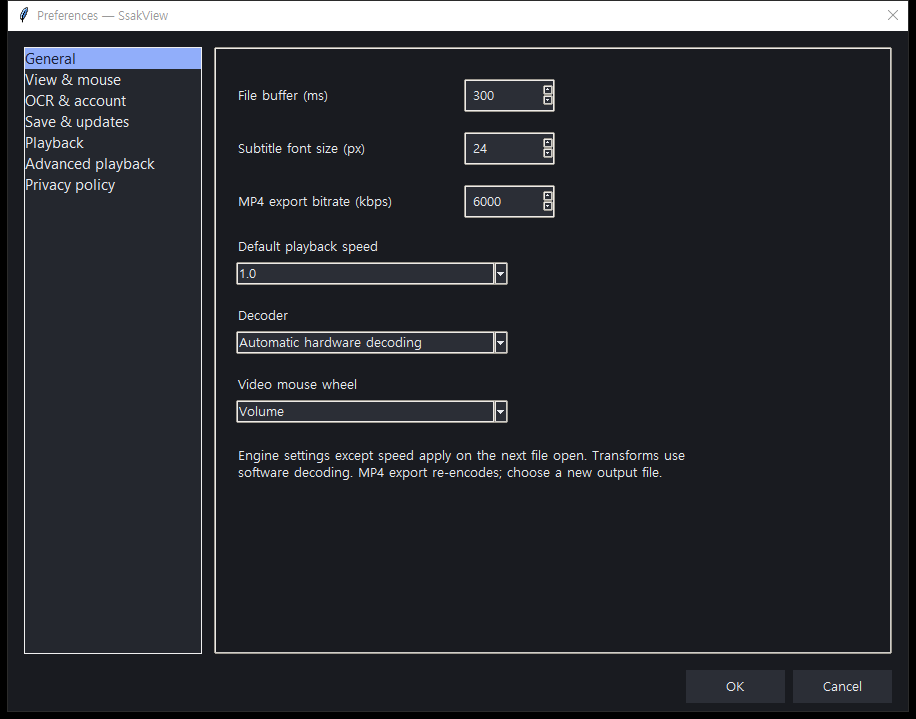
For video, Space plays/pauses, ← → seeks five seconds and ↑ ↓ changes volume. Open Playback for subtitles, speed, A–B repeat and bookmarks. F11 toggles full screen; Esc restores the window from mini mode.
Choose language, theme, save folder and resume in Preferences. Edit toolbar configures icons. In video, T opens frame OCR and Ctrl+Alt+S saves a PNG frame. For images, Ctrl+Shift+A finds all text.
Close all SsakView windows and run the latest installer directly. The downloaded SsakView_Update.exe is also an installer. Version 1.7.11 checks installed files and cleans up only playback workers left by an exited app. Settings move to Local\SsakView and learning data to SsakViewData in your selected folder. Conflicting files are kept in LegacyData; locked files are retried on a later launch.
Space toggles play/pause with focus on video, buttons or timeline, and restarts from the beginning after playback ends. Seeking while paused refreshes the selected frame. Use Return to video above the captured-frame review to return to your position. Unavailable commands are greyed out. Preferences → Playback sets normal/Shift/Ctrl arrow intervals and volume step. Advanced playback configures default speed, decoder, file buffer, subtitle font, wheel and MP4 bitrate.
Use Edit to combine 90-degree rotations and horizontal/vertical flips. Playback → Reset video transform restores the original view. Playback → Export edited video saves a separate MP4. Export re-encodes to H.264/AAC, so quality and size can change; it is not lossless editing that preserves all subtitles, tracks or chapters. Export can be cancelled.
GIF frames are decoded sequentially with their recorded timing. A synthetic 800×450, 25fps fixture measured about 24fps; results depend on your PC and file. The included VLC 3.0.24 engine plays common local media without a separate player installation. Not every codec combination, DRM or HDR color accuracy is guaranteed. Capturing after resizing paused video may advance one frame.
They stay in local playback history and are not automatically uploaded. In Preferences → Playback, disable resume or clear history and bookmarks. Saved frame images are separate files and are not deleted when history is cleared.
We generated an animated landscape, an eight-second video and Korean/English SRT subtitles. They contain no personal or real business data. You can also use Help → Open examples folder in the app.
Download video, GIF and subtitle examples ↓File information: information icon or View → File information. Toolbar: click Edit toolbar at the top right; the Tools menu, View menu and right-click also work. Add commands from the left, reorder them on the right and click Apply. Find all text: Ctrl+Shift+A. Language: Ctrl+, → General → Language → OK. Previous and Next wrap between first and last. A malformed GIF may open as a recovered first-frame preview; unreadable files are skipped. Originals are unchanged.
Three automatically generated examples: a landscape, a Korean/English document and a table. No real accounts or business data; free to reuse. Check OCR against the original. Extract the ZIP and open its folder in SsakView.
Download three example images ↓SsakView checks for updates at launch. Click Yes to download and verify, then install into your per-user Programs folder and relaunch. Updating a portable copy converts it to an installed copy. Save your edited image or cancel first. Disable startup checks in Preferences. Very early releases require a one-time manual download.
Settings migrate to SsakView and selected learning storage to SsakViewData. Conflicting files are preserved in LegacyData; account dictionaries are never merged across accounts. Locked files are retried on a later launch. Learning files are not encrypted; protect them with Windows permissions.
Choose extensions in the Images, Video, Music and Documents tabs during installation. Each tab has Select all and Clear all. Only Documents starts unchecked; saved choices persist across updates. After an automatic update, the selection appears when the app restarts. You can also open Preferences → General → File associations. Selected types are registered, then Windows Settings opens for you to confirm default apps. Some Windows versions require per-extension confirmation. Unchecked documents can still be opened directly in SsakView.
Open with Ctrl+O or drop a file. Documents have page, outline, search and bookmark tools. Ctrl+F searches; drag and Ctrl+C copies text. More offers rotation and a PDF copy. Originals are unchanged.
Office files use an approved one-time 548MB engine download and local conversion. Up to 20 converted PDFs/150MB are retained on this PC and evicted after seven days without use. Clear them in Settings > Save/Updates. Cache files are not encrypted. Changed documents reconvert. HWP/HWPX remain experimental.
Run the latest installer and use its new shortcut. Known SsakView handler commands are repaired without overwriting Windows default-app choices. If needed, select %LOCALAPPDATA%\Programs\SsakView\SsakView.exe in Open with. An executable or shortcut in an earlier installation folder may still open the old app. Open defaults to all supported files. Elevated execution can restrict drops from normal Explorer.
Public code signing is pending. Edge and SmartScreen can warn based on reputation; warning-free installation is not guaranteed. Verify filename, version and SHA-256 on the official site. Ask IT to review policy blocks; do not disable security protection.
Open ZIP, CBZ or TAR archives, then double-click an entry. Previous/Next cycles through members. File > Archive contents reopens the list. RAR, 7z and encrypted archives are unsupported.
Text selection follows the column where the gesture starts. Region OCR copies recognized text inside the rectangle and opens the review panel. Native spacing is retained; compare recognition with the source.
Opening a document hides the library and navigation panels. Use the toolbar to open the library, outline, search or bookmarks when needed.
An access-denied error can occur before the app starts. Check Windows Security protection history and organization application-control policy. tools/diagnose_ssakview.ps1 checks missing/unreadable installation files and saves a local report. Do not disable security protection.
Find text first extracts the page text layer, then uses local OCR for scanned pages. A rectangular selection without text falls back to region OCR. More > Recognize page again can bypass an incorrect text layer. OCR operates on the current page. Handwriting, broken fonts and encrypted documents are not guaranteed.
Use Translate in the OCR/document text panel to switch among three providers and save a default. Offline translation requires language packs and may pivot through English with reduced quality. Google Cloud requires your own API key and may incur fees. External transfer starts only when the provider-named translation action is pressed; no separate checkbox is required. Web translation text can remain in browser history. Spelling review supports Ctrl/Shift multi-selection, select all/clear and batch apply.
Use Read text to drag-copy words, copy text from an area or read the whole picture. Text recognition settings save your preferred method and offer installation and repair. Extra Korean recognition downloads about 226MB with progress and completion feedback. Local recognition requires no Google sign-in.
Open Edit → Filters to preview 12 color and monochrome looks and adjust strength. Cancel restores the previous state. Photo edits can be undone; use Save edited video to export a separate MP4. Filters do not carry over to new videos.